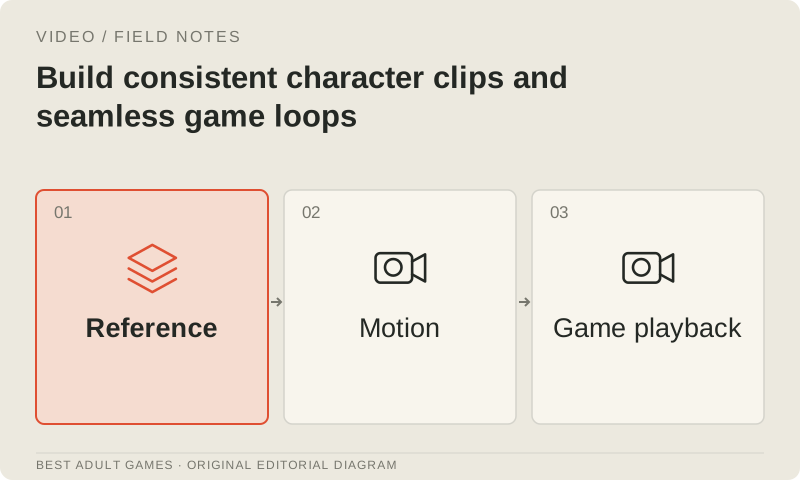
A useful character clip keeps the character recognizable while the picture moves. A beautiful first frame cannot excuse a face, outfit or prop that changes halfway through the take. Background geometry can drift too. Start with an approved still and a narrow performance goal, then review the whole clip for continuity. Treat image-to-video as a rendered shot that needs art direction and editing before it is ready for the game.
This workflow covers non-explicit character moments, environmental inserts and ambient loops for games or promotion. Choose a route whose documented controls fit the shot, and verify the relevant rights and content policy. Reference support and loop settings still leave you with an exported file to judge: identity, the seam and playback all need their own acceptance checks.
Approve the character package before motion
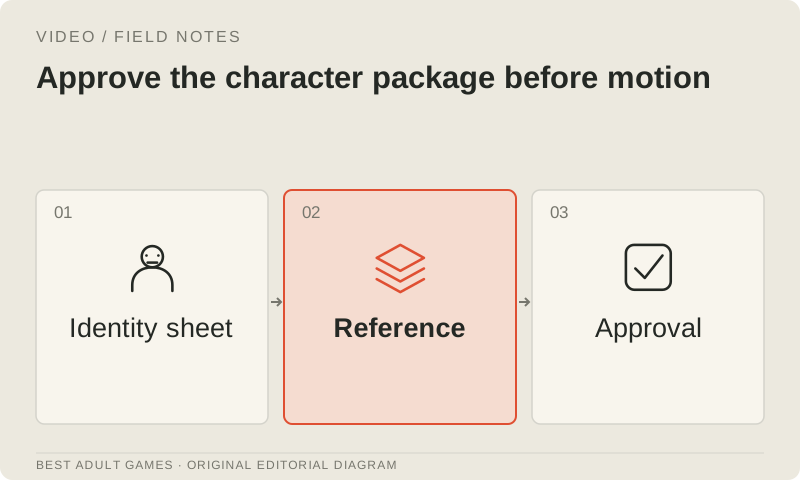
Prepare a clean master image with the composition the scene needs. Resolve anatomy, clothing seams, prop placement, lighting and background errors before generation; motion can carry those errors forward and add new ones. Keep the editable art or render source, and write a short identity sheet listing the features that must stay stable. For an adult-game project, use clearly adult character designs and keep explicit reference imagery out of services that restrict it.
Use extra reference angles only when the selected model supports them, and keep the images consistent. Conflicting outfits, proportions or lighting leave the intended identity unclear. Record ownership or permission for each image, any real-person likeness and any planned voice. A licensed character sheet gives the production a firmer footing than a collection of unrelated internet images. If the still cannot pass an art review, fix it before paying for motion.
Choose one clear movement and camera intention
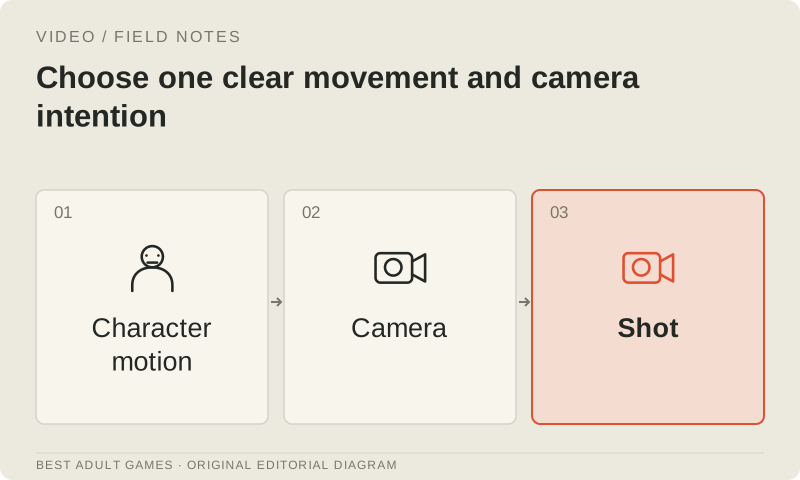
Choose a small action that suits the asset: a glance, a brief expression change, a restrained gesture or gentle movement in the environment. Specify the starting pose, intended endpoint and camera behavior. Keep the first test short enough to inspect closely. Combining several performances, camera moves and prop interactions makes a failed take harder to diagnose. When character identity matters, a precise shot plan gives you clearer acceptance criteria than a broad request for something cinematic.
Choose conditioning that fits that plan. Gen-4 Turbo is an image-first route; Veo 3.1 documents first/last-frame and extension controls; PixVerse C1 documents distinct frame and reference workflows. Luma Ray 3.14 supports a loop mode, though its launch guide lists limits on reference and character-consistency features. Their control sets differ, so select the one that addresses the shot. For a local Wan workflow, match the image-conditioned checkpoint, encoder and VAE to the official instructions.
Generate candidates without losing the record
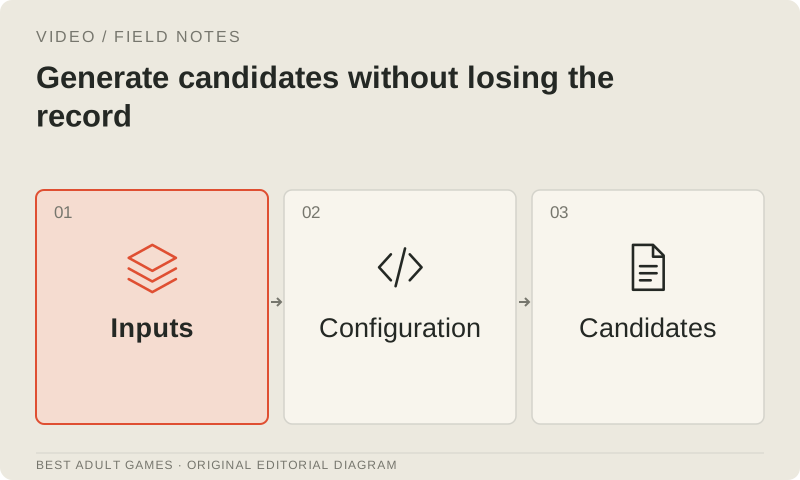
Start from one approved brief and change one production choice at a time. Keep the source image fixed while comparing motion instructions, or keep the instructions fixed while trying a model variant. Save the exact model, hosting route, workflow version, references and available settings, including the seed when one is exposed. A seed does not guarantee identical output across model updates or different implementations.
Compare several candidates and note why each passes or fails. Check facial identity, hair silhouette, clothing details, hand contact, prop shape and background lines throughout the clip. Inspect frames around blinks, turns and occlusions; changes there can be easy to miss at normal speed. Accept a take only when it preserves the required identity details and conveys the action without distracting defects. A subtitle correction or trim belongs in the editor. A face that keeps changing is a reason to reconsider the take.
Make the loop a separate acceptance decision
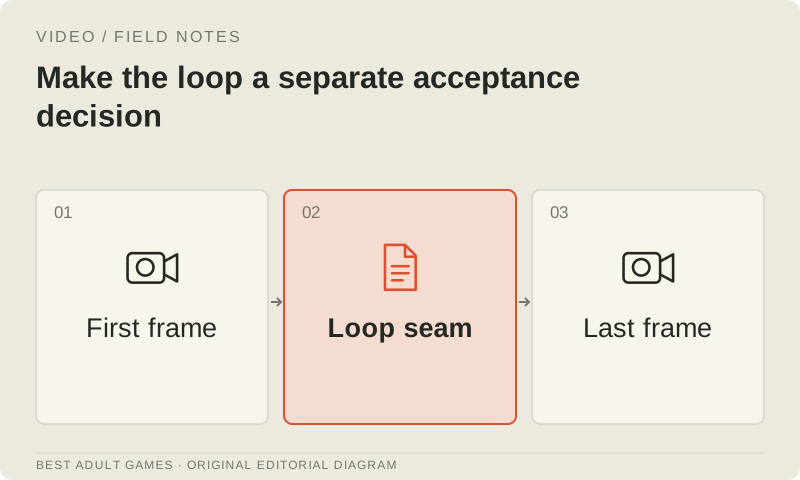
Build the loop around a repeatable state. A stationary camera and restrained recurring movement are easier to close than a walk across the room or a one-time gesture. If the model accepts a final frame, use it to guide composition, but matching endpoint images does not guarantee matching motion velocity. Inspect the join between the last and first frames, then play several cycles at normal speed. Look for jumps in position, exposure, expression and object shape.
Trim at compatible moments and add an editing transition only if it preserves the intended look. A dissolve may hide a slight background change while giving you ghosted hands or a duplicated face. Reversing a clip can suit some ambient movements, but make speech, blinking or directional gestures look unnatural. Check the compressed delivery file after editing. Sound needs a separate loop check: remove unwanted generated audio or build an ambience bed without a click or abrupt change at the boundary.
Keep dialogue, sound and typography editable
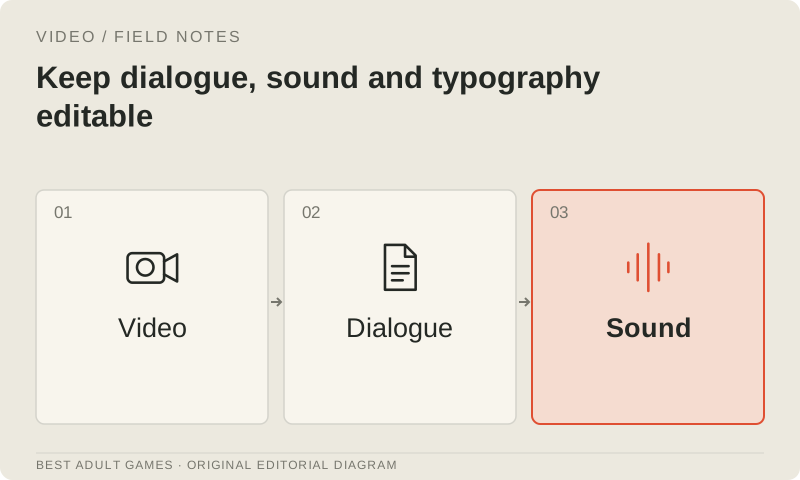
Native audio can help explore a scene, but dialogue-heavy game assets benefit from separate control of the script, voice recording, subtitles and mix. Verify performer and voice permissions before using reference recordings. Check timing, pronunciation and expression against the picture, and replace sound deliberately when the generated track fails the brief. Keep essential interface text and logos in an editing layer so they stay exact and can be localized.
Keep a clean picture master and separate audio or subtitle assets. For a talking-character route such as Act-Two or SkyReels V3, inspect the face and gesture through the entire performance, including silences and transitions. In Act-Two, character-image inputs allow gesture transfer, while character-video inputs retain their source body and camera motion. The delivered clip is a video asset; it does not contain editable facial animation for your character rig. Preserve enough source material to revise a translated line or changed name without restarting the whole visual production.
Export for the actual game runtime
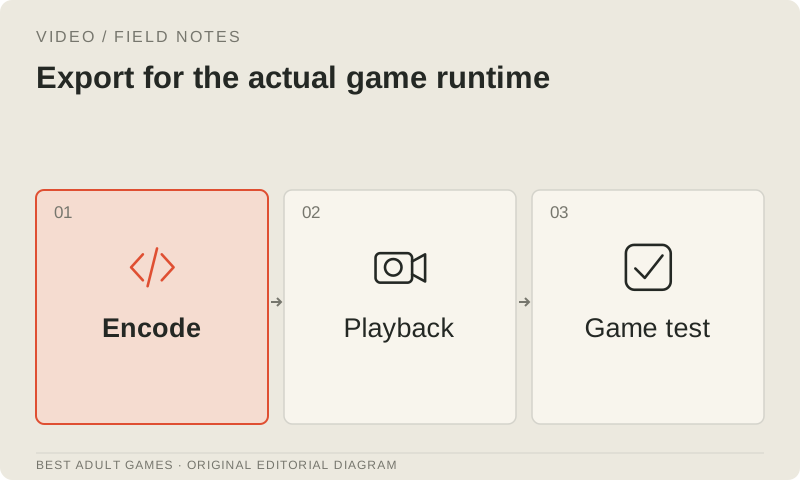
Create a high-quality master, a delivery encode and a still fallback, with filenames that identify the asset version. Choose codecs supported by the target engine; an MP4 or WebM extension alone tells you too little. Ren’Py’s movie documentation distinguishes desktop decoding from browser playback, so an H.264/AAC web delivery is not a universal desktop recipe. It also documents movie fallback images and mask handling. Check the engine version and platform requirements before settling on an encoding recipe.
Test the exported asset in the game on representative devices. Check startup, repeated looping, pauses, scene changes, memory pressure, audio behavior and the still fallback. For multiple simultaneous Ren’Py movies, follow its documented same-framerate requirement. Review the clip at its actual display size with the game interface visible: small defects and text placement can read differently there. Ship after the art reviewer accepts continuity and the developer confirms playback behavior. Keep the manifest, sources and master so future corrections have somewhere to start.
Key decisions
- Approve the still before asking a model to animate it.
- Keep the motion focused and compare takes against a written character-identity sheet.
- Review the picture seam, sound loop and compressed export separately.
- Keep voice, subtitles and brand text editable outside the generated picture.
- Deliver a master, a runtime-tested encode and a still fallback, and retain the source manifest.
External model communities and publishing sites may contain explicit material. Source links open in a new tab; this guide does not load their previews.
Sources & further reading +
- Runway model catalog and endpoint IDs ↗
- Veo API capabilities and model IDs ↗
- PixVerse C1 endpoint documentation ↗
- Luma Ray 3.14 user guide ↗
- Official Wan 2.2 repository ↗
- Official SkyReels V3 repository ↗
- Ren’Py movie playback and platform requirements ↗
- Runway Act-Two performance and input guide ↗
Last checked 5 October 2026.